
Connect your Windows 365 Cloud PC to a Azure Virtual Network?
When talking to IT Pros about Windows 365, we often discuss Windows 365 as a jump host for privileged users. And it does increase security to have strict configured desktop, when you access services with extra privileges. The desktop will less likely be infected by any malicious just waiting for you to elevate your privileges. Security is also increased when having a second account only for privileged access, combine these together and you have increased security and reduced the risk of being infected.
Summary:
- Jump Host with tighter configuration then your regular devices.
- Second user with privilege roles.
This have been around for quite some time, and some companies do follow them, but the Jump Host can be costly and complexed in a bigger environment. Where you want to limit access specifically for separate users on the Jump Host.
Here is where Windows 365 might be a good idea for Jump Host in your Azure Environment, because it isn’t more expensive then a physical device and its not very complexed to give Cloud PCs different connection within your Azure Infrastructure.
Heres a architect diagram of how connecting to an Azure Virtual Network differs from a regular Windows 365 Cloud PC with Internett access:

But we are connecting to one of your Azure Virtual Network )(AVN), in order to jump into your Azure Infrastructure using a backdoor inside Microsofts datacenters, rather the cross the Internet. And the architecture will change to this diagram, which also lets you jump through your VPN or Express Route to your on-premise infrastructure when you a gateway connected from the VNET:

Microsoft is calling this “Bring Your Own Network”, and I am wondering if #BYON will catch on 🙂 It might not be to easy to illustrate, but as we look at further down your Cloud PC will recieve a private IP from the subnet you choose inside the VNET. But anyway, lets have a look on the configuration to connect into you AVN.
Create Azure Network Connection for Windows 365 devices
Navigate to endpoint.microsoft.com \ Devices \ Windows 365 and find Azure Network Connection:

Choose a name and join type, because it supports hybrid join to, but we are modern people and use Azure AD Join of course. Choose your subscription, resource group, virtual network and subnet to place your Cloud PCs.
Windows 365 Cloud PC uses the 10.1.0.0/24 address space.
Make sure your virtual network doesn’t, else the traffic will not be routed into your virtual network. I tested this, because I didn’t know the address space used by Windows 365 and upon trying RDP it attempted to connect to a colleagues Cloud PC.
Noticed the ‘Insufficient permissions error’ message? It turns out you need Subscription Owner in order to have sufficient permission. Because you give Windows 365 Subscription Reader, Resource Group Reader and Virtual Network Contributor. Wonder if there is more to it, because you don’t need to have Ownership to delegate those three permissions. You could have User Access Admin or Security Champion. But its probably the easier way around.
Sit back and wait for the Cloud PC infrastructure to connect to your virtual network.
Create Provisioning Policy to create Cloud-PCs with ANC
Once that is done, navigate sideways to find Provisioning Policy and create a new.
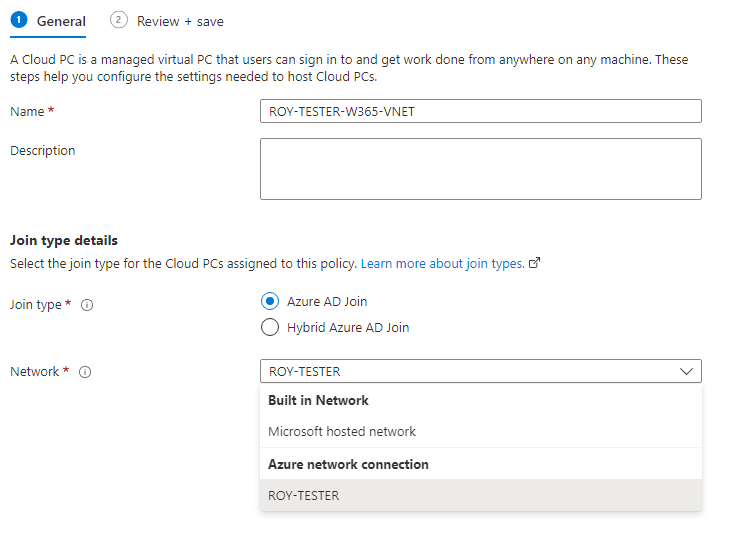
Go through the settings, and on assignment we need a group whose Cloud PCs will be connecting to this specific Azure Virtual Network. It might be a project team, networking team, database team or any people with common interest in connecting to the same virtual network. It is required to be a group, because it is also assigned in order to get a Cloud PC provisioned in the first place.
I made a new group and added myself.
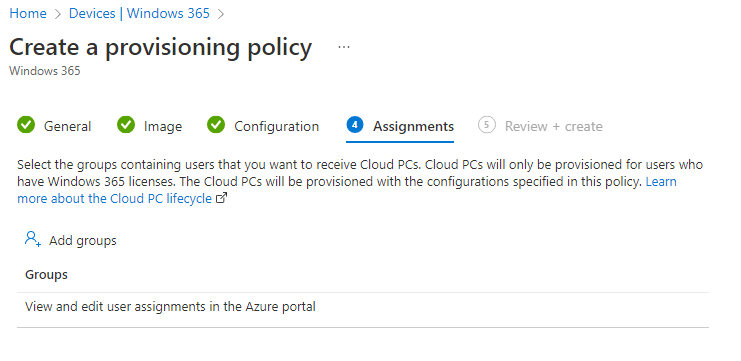
But I was already member of a group getting a regular provisioning policy. The Cloud-PC from that policy prohibited me from getting a new device, and it would take 7 days in grace period when I removed myself from the group. So I ended up navigating to the device in Endpoint Manager\Windows 365 and on Cloud-PCs marked as in-grace period you get the option to end the grace-period:
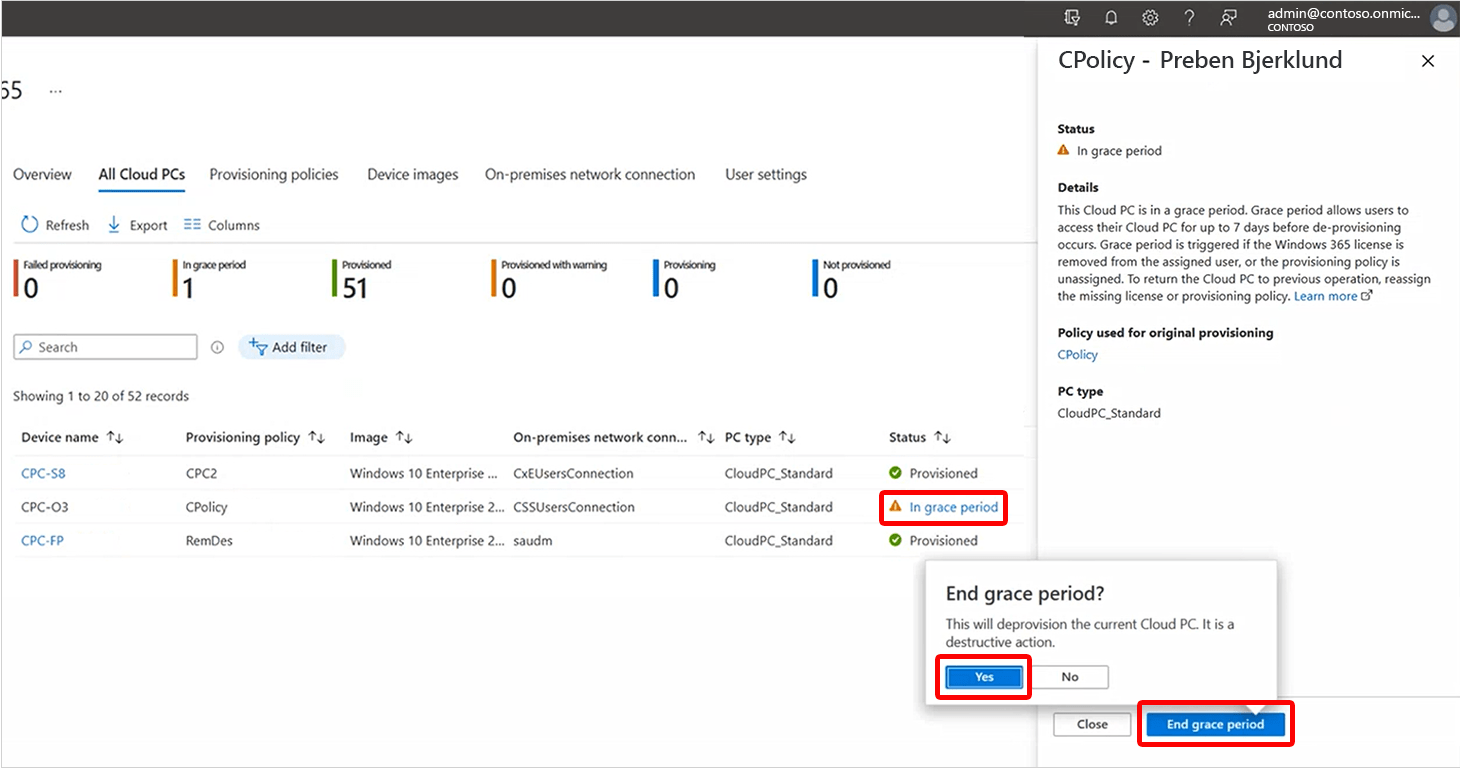
In the future we will be able to have multiple Cloud-PCs, but for now they must be on different licenses if your craving multiple Cloud-PCs on your same user. It is in the roadmap to sort this out Microsoft said.
What does this configuration do to your Cloud PC?
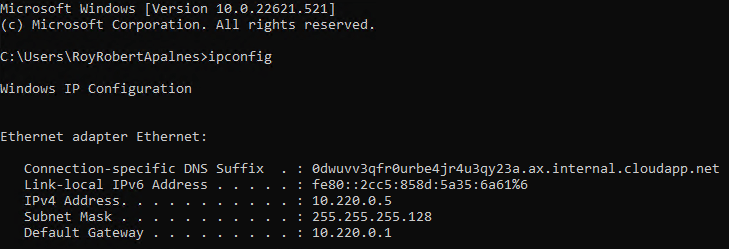
You Cloud PC will be connected to your virtual network and receive an IP address from the chosen address space and subnet. Just like creating a virtual machine connected to the same virtual network.
What about firewall / network security group?
Just like any virtual machine in the same subnet, you can protect your machines with network security group on the subnet or by routing everything through a firewall.
The Windows 365 Cloud PC also creates a network interface resource in the Resource Group hosting your VNET, so you can make it part of your enterprise network in Azure. Allthough using Application Security Groups will need manual setup, as we don’t have access to the deployment of the Cloud PCs into Azure.

Notificed Windows 365 creates alot of acitivites around network interfaces, but don’t know what thats all about yet.
What about network topology?
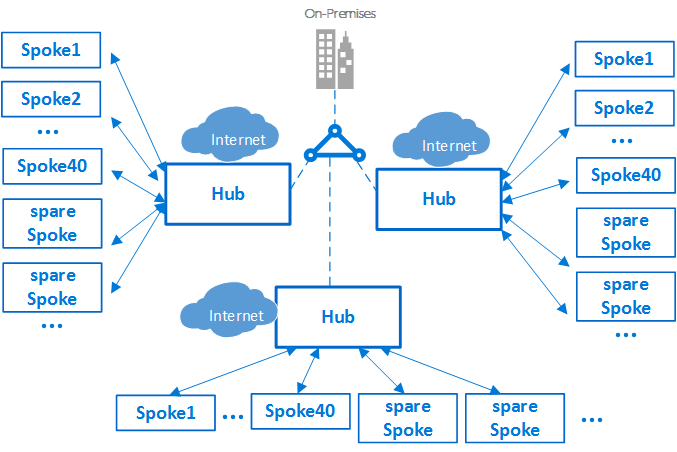
If you already have a hub/spoke network architecture, you can traverse through your hub to other spokes. Perhaps create a spoke for all Cloud-PCs to connect and traverse from. Or create multiple network connections and provisioning policies, so you will have multiple CloudPCs depending on which solution in Azure you want to work with.
What about the other way around?
Can we remote from a VM to the W365 using RDP?
Don’t know if you would need it, but no, we can’t remote from an Azure VM to W365 this way. Maybe you can hack your way to it, but for now I don’t see what purpose you might have for it.
Thanks for reading my thoughts and looking into Windows 365 as a Jump Host to Azure.
If you like my post, please join me in my subscriber list and recieve notification on new post.
#SecurityTip
We can start using Windows 365 as PAW Computers, or Privileged Access Workstations. Lockdown on the devices using Azure AD Conditional Access and Intune Management.

Leave a Reply
You must be logged in to post a comment.